Copy, Paste, Shortcuts & Custom Shapes in the Editor
Copy, paste, shortcuts & custom shapes
A batch of editor upgrades just landed, and they're the kind you feel within the first minute of using them.
Copy and paste, finally everywhere
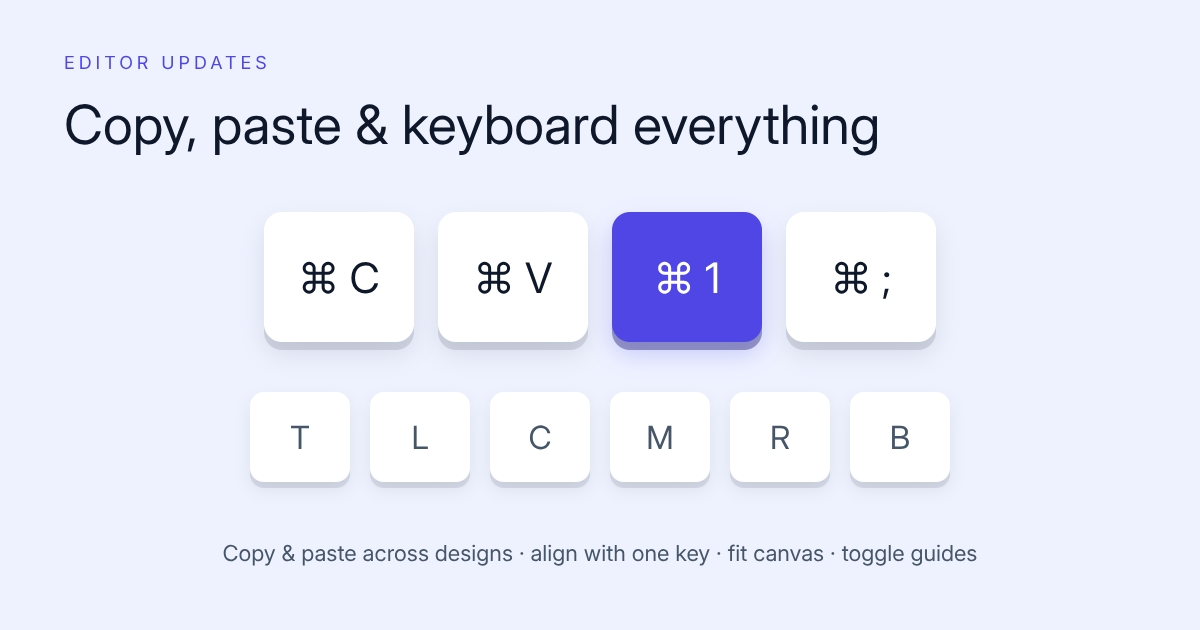
Cmd/Ctrl+C and Cmd/Ctrl+V now work on components inside the editor. Duplicate an element, or copy it and paste it into a completely different design in another tab. The clipboard carries the full component, so everything survives the trip: styling, size, dynamic settings, all of it.
One-key alignment
Select a component and press a single key to snap it: Top, Left, Center, Middle, Right, or Bottom. Six keys, no toolbar round-trip. Once your fingers learn them, nudging layouts into place gets dramatically faster.
Two more canvas shortcuts joined them:
- Cmd/Ctrl + 1 fits the canvas to your screen.
- Cmd/Ctrl + ; toggles the alignment guides and rulers.
And no, you don't have to memorize any of this: the shortcuts dialog in the editor lists everything.
Resize the way you expect
Corner handles now scale components from the corner you grab, and you can change width and height independently. Bounding boxes and handle positions got fixed up along the way, so what you grab is what moves.
Custom shapes
The shape component now accepts any SVG path. Stars, arrows, blobs, speech bubbles, your logo mark. Paste a path, set fill and stroke, done. This quietly turned the shape tool from "rectangles and circles" into "any vector you can find or draw."
Layer names
Layers can be renamed, so the layers panel can read "hero_title" and "price_badge" instead of a pile of "Text" entries. Small change, big difference in templates with twenty components.
All of it is live in the editor at imejis.io. No settings, just muscle memory to build.